Settings
Firm → Settings is where the firm's profile, its Claude connection, the instructions Claude is given, the firm's capability switches, and the compliance downloads all live. It's organised into tabs.
General
The firm's profile — name, logo, accent colour, and a short description of what the practice does. That description matters more than it looks: it's part of the context Claude is given about your firm, so a sentence or two about your work makes its assistance more relevant. Branding makes the portal and the firm's emails look like yours.
Claude setup
The connection reference — the MCP URL format and how Claude connects. Most people never need this tab; it's here for when you're helping someone reconnect or checking how the connection is configured.
Capabilities
Where the firm decides which optional tool families are on: the four read policies (mail search, calendar read, files, Teams chats — each default OFF) live here, alongside a customer-safe view of each capability's effective status (what is actually on for your firm right now, including anything held off platform-side). Switching a read policy on is what makes the corresponding read tools usable by your users (the tools refuse until the policy is on); everything stays observation-captured either way.
Global instructions
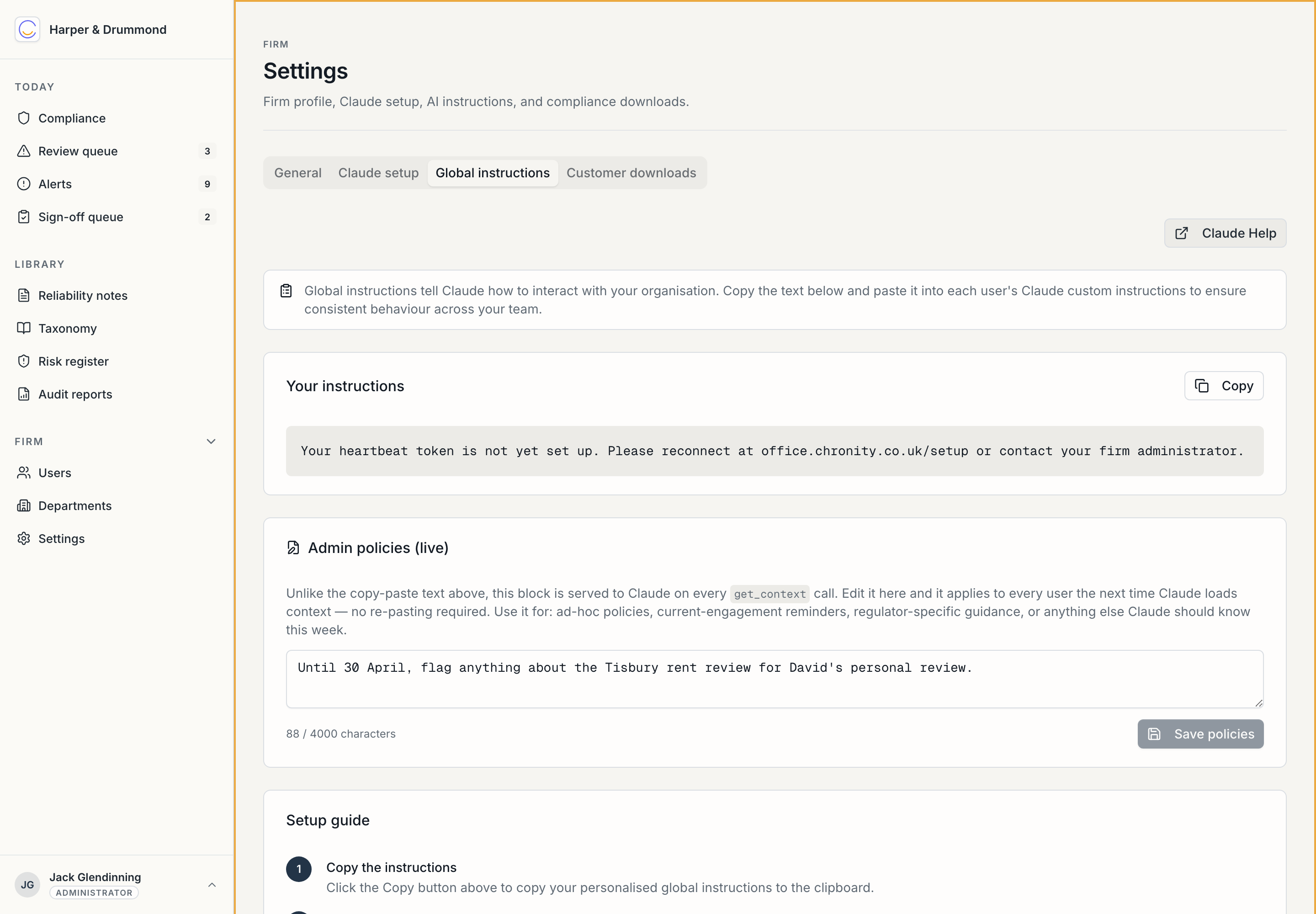
The most consequential tab. It has two parts:
- Your instructions — the block every user copies into their Claude profile during setup. It includes the heartbeat line and the standard compliance behaviour, and there's a Copy button. This is the same text for everyone in the firm, which is what keeps Claude's behaviour consistent across the practice.
- Admin policies (live) — unlike the copy-paste block above, this is served to Claude on every conversation, with no re-pasting. Edit it here and it applies to everyone the next time Claude loads context. Use it for the things that change: a current-engagement reminder, a regulator-specific instruction, a "until the 30th, flag anything about the X matter for personal review" note. Save, and it's live.
This is your steering wheel for the firm's AI behaviour. The copy-paste block is the stable foundation; admin policies are the live adjustments.
Customer downloads
The due-diligence pack — a generated document describing what Chronity processes, how, where, and under what encryption. Regenerate it and download it to drop into your own supplier due-diligence file. This is what you hand a client (or your own compliance reviewer) who asks "what is this third-party AI tool you're using, and is it safe?" Detail in AI Lead → Due-diligence pack.
That completes the day-to-day administration. The governance side — signing the taxonomy, the quarterly risk register, dip-sampling, audit reports — is the AI Lead's, and is covered in the AI Lead reference.